Silhouette Studio needs Designer Edition or above to open an SVG. An imported arrangement of circles is already a hole layout: inspect its dimensions before applying another conversion or resizing it.
Check the edition before buying a file
The first question is whether your installed software can open the file you intend to request. Silhouette's official documentation says Designer Edition and above can open SVG files; exporting SVG is a separate Business Edition feature. Check your own edition rather than assuming all Silhouette Studio installations have the same import options. See Silhouette's Designer Edition documentation.
Owning a cutting machine and owning a particular software edition are separate things. If you are unsure, confirm the edition in the application before requesting a paid file. This pilot delivers an SVG or PDF by manual agreement; it does not currently offer DXF, a native STUDIO file or software upgrades.
You can still use the free browser preview to plan a name or logo before making that decision. The preview does not require Silhouette Studio. However, it cannot add SVG support to another application or verify how an untested software version interprets your file.
Open the layout and inspect it
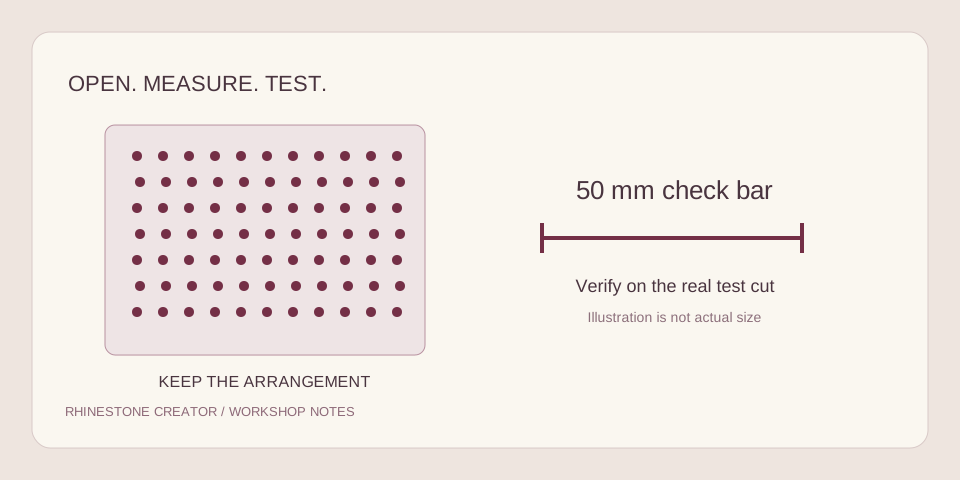
Begin with the free calibration SVG from the creator. Use File > Open in a compatible edition and select the saved SVG. If it opens in a web browser when you double-click it, that may simply be the operating system's default application; open it from inside the intended software.
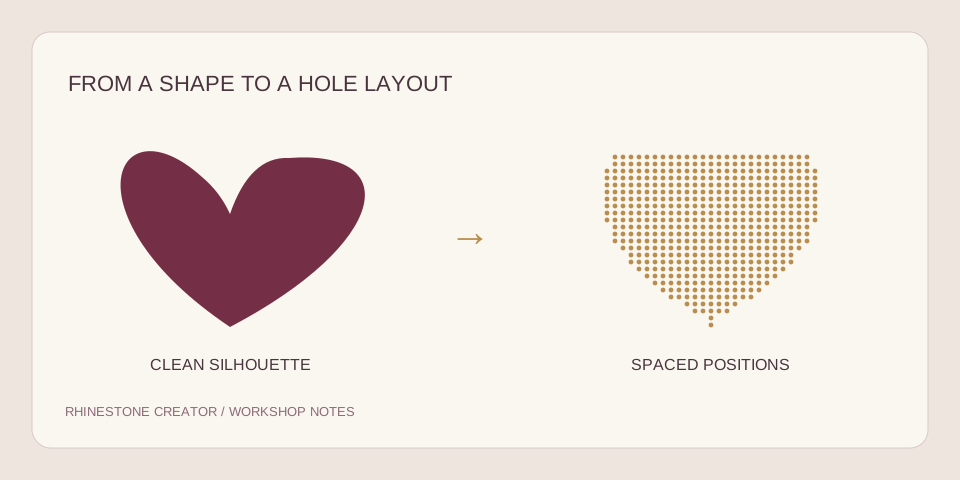
An imported rhinestone layout is an arrangement of hole shapes. It is not the original filled logo waiting to be converted again. Applying another rhinestone effect or tracing the preview can create a new arrangement with different circles. Keep a copy of the supplied file so you can compare any changes with the original.
- Select the complete design and inspect its overall dimensions.
- Zoom in enough to see that each circle is separate.
- Check a circle's diameter without changing the full design.
- Inspect the cutting preview to make sure the intended circles are included.
- Remove or disable unintended shapes only after identifying why they are present.
The current creator exports a single-color layout made of circles. It does not add a surrounding flock border to the SVG production draft. If your workflow needs a border, add one deliberately with enough margin and inspect the resulting cut arrangement. Do not accidentally scale the circles while making space for that border.
Treat hole size as a fixed dimension
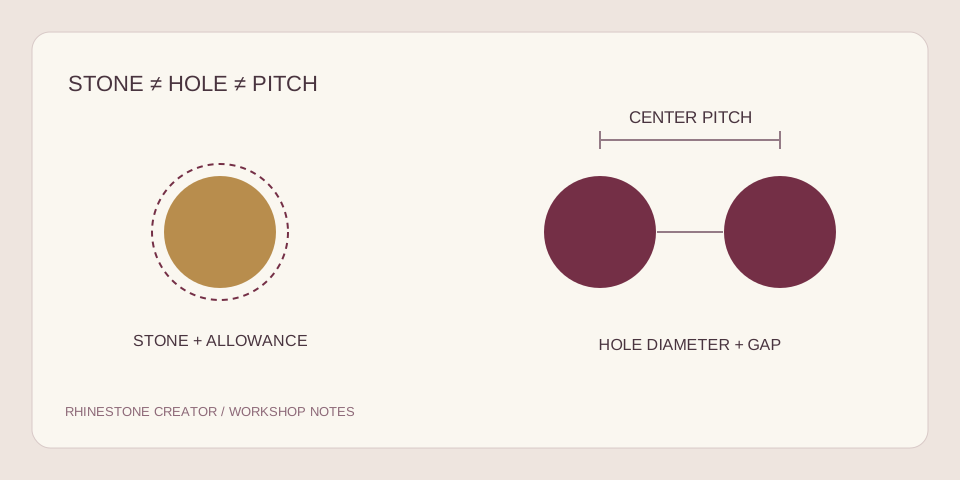
A name that looks too wide is tempting to shrink by dragging a corner. That also shrinks every hole. If a 200 mm design with 3 mm holes is scaled to 160 mm, the scale factor is 0.8 and each hole becomes 2.4 mm. The same batch of stones may no longer fit.
Change the finished width in the original creator and rebuild when you want a different width while retaining the intended hole diameter. That changes the number and arrangement of stones rather than shrinking them all. Review small openings in letters again after rebuilding, because the new arrangement may read differently.
Use the 100 mm calibration design and its 50 mm check bar to confirm the scale before a complete cut. An on-screen ruler is not enough: monitor zoom and physical display size are unrelated to the millimeters in the design.
For a file you received from someone else, ask for its intended width and hole diameter before changing it. A file labeled only “SS10” leaves out the allowance chosen for the stencil. The SS size and hole guide separates those measurements.
Prepare the page and material
Choose the actual page or cutting area and the material size you will use. Leave room for the layout, handling and any border your workflow requires. A 200 mm name does not mean a 200 mm-wide piece of material will provide a useful margin on both sides.
The digital studio cannot determine the right blade, pressure, passes or adhesive behavior for your material. Use the equipment and material suppliers' guidance, then make a small cut with your real setup. Record the software version, selected material and test result together so you can reproduce the successful setup later.
Test stones from the batch you will use for the garment. A correct-looking circle on the screen cannot reveal an irregular stone, a hole that has not weeded cleanly or a material that deforms during handling. Solve those issues before treating the full design as ready for a customer.
Diagnose common import problems
| What happens | What to investigate |
|---|---|
| The SVG will not open | Your software edition, the file extension and whether the download is complete |
| The design has changed size | Import preferences and the overall dimensions before any manual resize |
| The circles changed after conversion | Whether a second effect or trace was applied to an existing hole layout |
| Unexpected lines will cut | The actual shapes and cut selections in the preparation view |
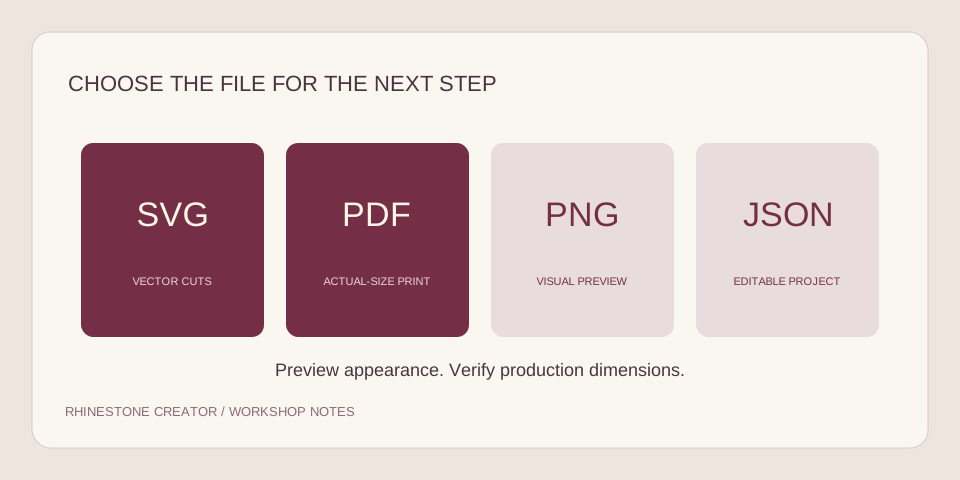
| A printed sheet is the wrong scale | Whether you need the actual-size PDF and a 100% print workflow instead |
Send a useful review request
Include your Silhouette Studio edition, finished width, intended stone size, candidate hole diameter and gap. If an import fails, describe what failed instead of only saying “it doesn't work.” An error message, an unexpected dimension and a missing feature are three different problems.
Use the layout preview to resolve spelling and broad appearance first. Save the JSON project to keep manual edits. Then request a reviewed SVG or actual-size PDF according to the way you will make the project. The proposed price is $4.99 per design; the pilot does not collect payment when the request is submitted.
About this guide
Written for the current single-color Rhinestone Creator pilot. File generation and screen workflows have been checked locally; a physical cutter, stone batch or fabric combination has not been certified. Software features can change, so check the linked manufacturer instructions before production.