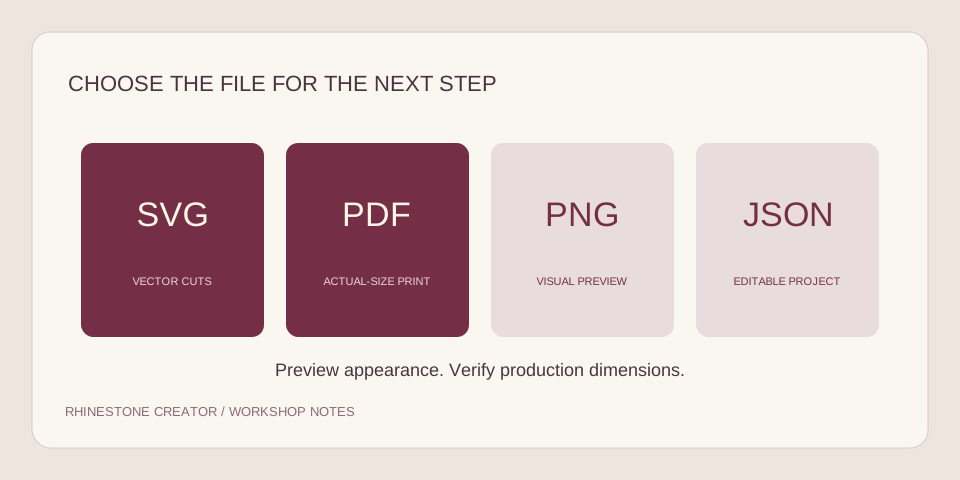
Choose SVG when your cutting software supports vector cut paths. Choose an actual-size PDF for a printed placement or review workflow. A PNG shirt mockup shows appearance, while a saved JSON project restores editable stone positions in this tool.
Compare the four file types
The useful file depends on the next operation. A cutter needs supported vector geometry. A person checking placement on paper needs a document with reliable print dimensions. A customer discussing a shirt design may only need an image showing its appearance.
| Format | Use it for | Do not assume |
|---|---|---|
| SVG | Measured circles in compatible vector cutting software | That every software edition imports it, or that it supplies machine settings |
| Actual-size printed placement or a measured review sheet | That Fit to page preserves dimensions, or that a cutter accepts PDF | |
| PNG | Layout or shirt mockup preview | That visible dots are separate measured cutting paths |
| JSON | Restoring individual stone positions in Rhinestone Creator | That it is a file your cutter can use directly |
In this pilot, preview PNGs, project JSON and a calibration SVG are free downloads. A reviewed production SVG or PDF is requested separately at a proposed $4.99 per design. The request process is manual and does not collect payment or promise an instant production download.
Use SVG for a cutter workflow
An SVG can describe each hole as a circle with a position and radius. The production draft uses millimeter dimensions so that the intended layout has an explicit physical size. A compatible application can use that geometry without tracing a screenshot of the dots.
Opening the file is only the first check. Confirm the overall width, a hole diameter, the arrangement in the cutting preview and whether every intended shape will cut. Keep an untouched copy before adding borders, labels or other production elements in another application.
Import support is specific to the application and edition. For example, Cricut documents SVG upload and a complexity limit in its upload instructions. Silhouette documents SVG import for Designer Edition and above in its edition reference. Check the relevant workflow rather than treating “SVG” as a universal compatibility badge.
The creator's SVG layout does not supply a blade setting or a tested material profile. It also does not turn a mixed-size, multicolor design into separate layers. If those are necessary for your project, resolve the workflow before requesting the file.
Use PDF at actual size
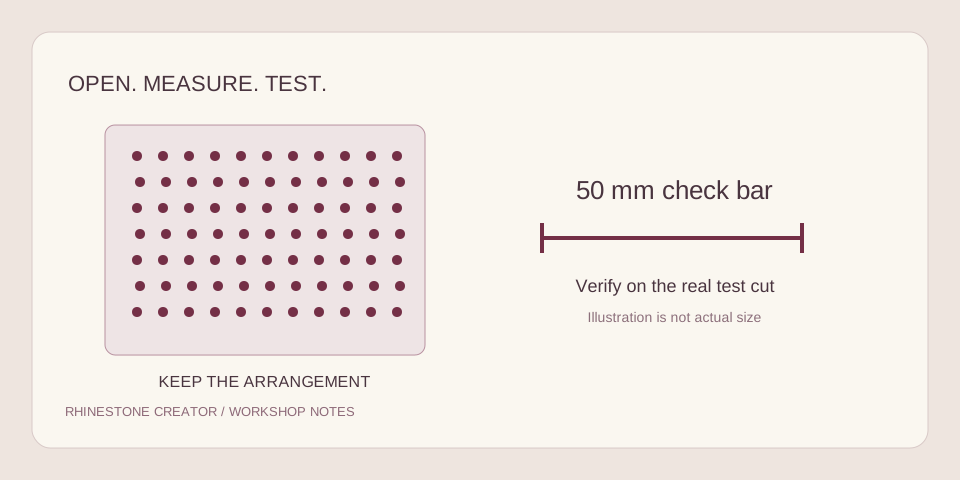
A PDF is useful when you want a printed reference for placement or manual work. This creator's draft PDF uses A4 pages and a 50 mm check bar. Larger layouts are split across pages, with a 5 mm overlap to help align adjacent sections.
- Print one page using Actual size or 100% in your print dialog.
- Disable options that shrink, expand or fit the document to the printable area.
- Measure the check bar with a physical ruler before printing all the pages.
- If it is not 50 mm, resolve the print scaling or driver setting first.
- Use the tile labels and matching overlap when assembling a larger layout.
A 50 mm bar printed at 95% is only 47.5 mm long. That same reduction also makes the holes smaller and brings them closer together. A print that looks nearly right can therefore be unsuitable for the original stones.
Do not trace a printed or screen-rendered PDF back into a raster image and assume you have preserved the intended geometry. If your next step is a supported vector cutting workflow, request the SVG and inspect it in that application instead.
Why resizing a finished layout changes fit
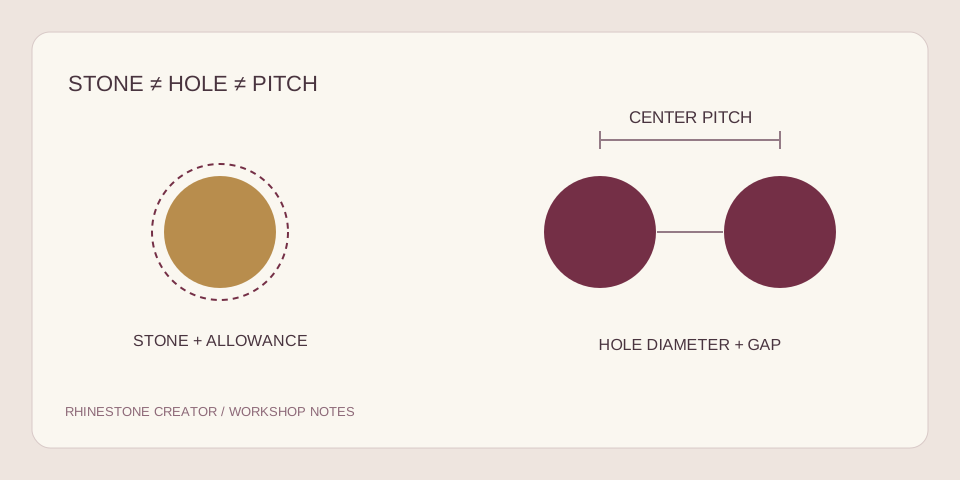
Suppose a 200 mm-wide layout has 3 mm holes. Shrinking the whole finished file to 180 mm applies a scale factor of 0.9. Every hole becomes 2.7 mm, and a 0.5 mm gap becomes 0.45 mm. The file has changed more than the width of the name.
If you need a smaller name using the same stones, change the width in the creator and rebuild while keeping the tested hole diameter. Inspect the new result because fewer circles may fit around a narrow stroke or small opening.
The shirt mockup's placement and size controls are independent of those physical dimensions. They are for visual planning on an AI-generated model image. The screen position is not a measurement from the collar of a real shirt, and the mockup PNG is not a placement template at actual size.
What happens after a file request
Choose Request my files after creating a useful layout. Include the desired format and the software or print workflow in your notes. The form sends your stone positions and contact details; sharing the original image is a separate option.
The workshop reviews the request and confirms the next steps manually. No money is collected when the form is submitted. The current delivery screen holds one SVG or PDF at a time. If you need both, ask before agreeing to the file and delivery arrangement rather than assuming a bundled download is included.
Save the private project link shown after submission. It displays status, a workshop message when one is added and a download when a file is released. Automatic email delivery is not enabled in this pilot, so the private page is the place to check.
Check the file you receive
- Check the spelling and design against the approved preview.
- Confirm the full dimensions and hole diameter before any resize.
- Make sure the requested format opens in the intended application.
- Inspect the mat arrangement or print scale, depending on the workflow.
- Cut a small sample and test stones from the actual batch.
- Keep the original file and record any changes you make.
If the format is clear but the hole value is not, start with the hole and spacing guide. If the design itself still needs work, use the image conversion guide before requesting a production file.
About this guide
Written for the current single-color Rhinestone Creator pilot. File generation and screen workflows have been checked locally; a physical cutter, stone batch or fabric combination has not been certified. Software features can change, so check the linked manufacturer instructions before production.